Category: WordPress

Methods to Get Shortlink Button in WordPress

WordPress shortlinks are useful for sharing in your emails, facebook messages, or even text messages. It was a default feature until WordPress version 4.4,now lets see Methods to Get Shortlink Button in WordPress.

Get Shortlink button is a WordPress feature that allows you to easily get a short link of your WordPress blog post or page. It used to be located right next to the permalink area in the post edit screen.

WordPress shortlinks are useful for sharing in your emails, facebook messages, or even text messages. It was a default feature until WordPress version 4.4. now we are going to see  how to bring back the get shortlink feature in WordPress. In this tutorial, we will share how to restore the get shortlink button in WordPress.

Methods to Get Shortlink Button in WordPress

First thing you need to do is install and activate the WP Bitly plugin

Upon activation, this plugin will automatically add the Get Shortlink button on your post edit screen.


Once you click on this button, it will show you the shortlink for your WordPress posts and pages. This shortlink can be shared in your emails and messages, so your audience can reach directly to the page.


You can also use the WP Bitly plugin to create custom branded shortlinks for your blog posts .

 Manually Adding Get Shortlink Button

This method requires you to add code to your WordPress files.

You will need to add the following code to your WordPress theme’s functions.php file or a site-specific plugin:

1
add_filter( 'get_shortlink', function( $shortlink ) {return $shortlink;} );

This code will add the shortlink filter to display the Get Shortlink button in your WordPress pages and posts.


We hope this article helped you bring back the Get Shortlink button in WordPress.
Simple 4 steps for creating contact forms in WordPress

Contact forms really help the customer to interact with us by asking their queries and sharing feedbacks. Now let see the simple steps in creating a contact form in WordPress.

Steps in creating contact forms in WordPress :

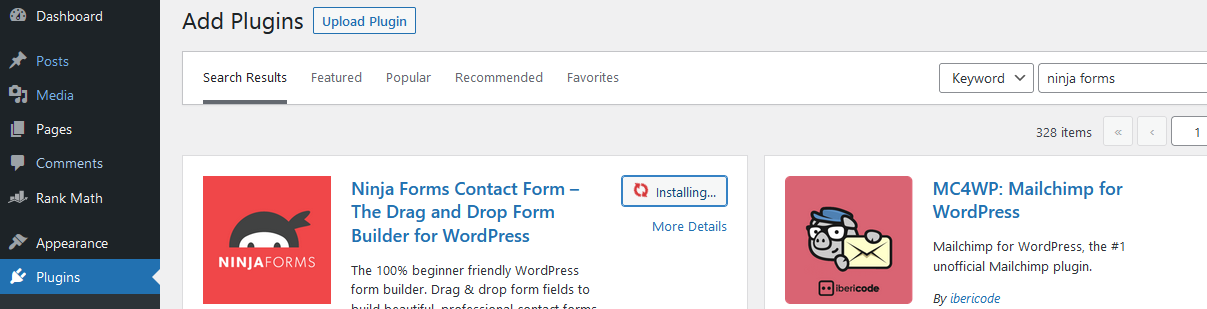
Step 1:First add a contact form plugin, Here I choose ninja forms.

Once installed the plugin click activate

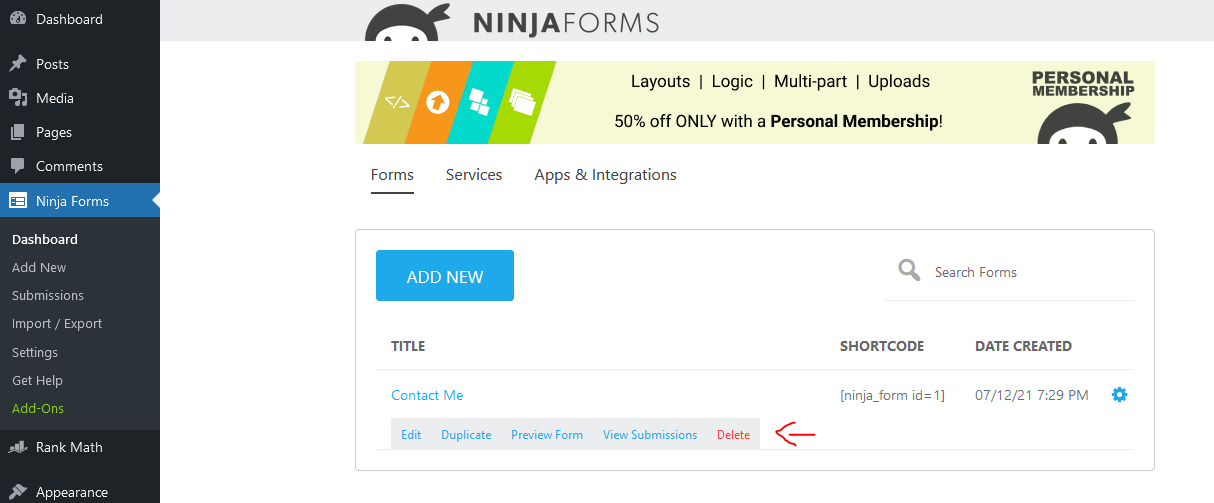
Step 2: Now we can able to see Ninja forms option in the left side of the panel as showing in the page,

Click that and delete the default contact form.

Step 3: Now create a new contact form.

Step 4: For adding the created contact form first we need to create a new page.

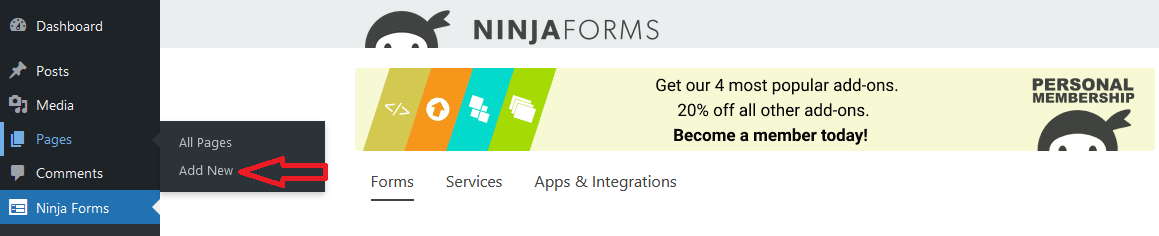
Click Pages > Add New and name the page as contact form.

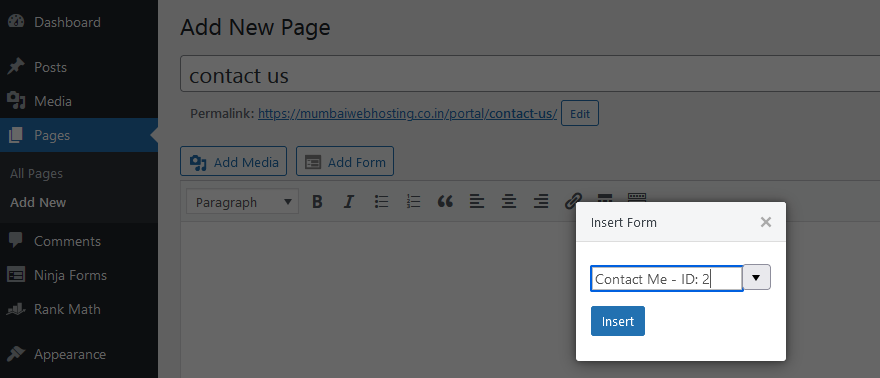
Now insert the form and choose the form from the drop-down list.

So finally we have created a contact form using WordPress using the plugin.

6 Steps to gain Hacked WordPress dashboard admin access

We might have come across WordPress website infections through outdated Themes and Plugins which can be resolved by updating themes and plugins regularly. But
What if you got into a situation that your WordPress dashboard admin access removed and you no longer able to access it? How to gain Hacked WordPress dashboard admin access back.


6 Steps to gain Hacked WordPress dashboard admin access :

To gain the WordPress dashboard admin access back, we can add an Admin User to the WordPress Database via MySQL as the hacker might have removed it to restrict the access to the WordPress dashboard.

Note: Make sure you have a backup of your database before performing any MySQL edits.

1.login to your hosting control panel and go to phpMyAdmin and locate your WordPress database.


2.Once you are in, we will be making changes to the wp_users and wp_usermeta tables. Let’s go ahead and click on the wp_users tab

3.now click on the Insert tab and follow the below steps,

  • ID – pick a number ( for example 5)
  • user_login – insert the username you want to use to access the WordPress Dashboard.
  • user_pass – add a password for this username. Make sure to select MD5 in the functions menu.
  • user_nicename – put a nickname or something else that you would like.
  • user_email – add the email you want to associate with this account.
  • user_url – this would be the URL to your website.
  • user_registered – select the date/time for when this user is registered.
  • user_status – set this to 0.
  • display_name – put the name you like to display for this user on the site (it can be your user_nicename value as well).
  • Click on the Go Button

4.Next, we have to add the values to the wp_usermeta table. Click on the wp_usermeta table and then click on the Insert tab just like the previous step. Then add the following information to the insert form:

  • unmeta_id – leave it as blank it is it will generate automatically.
  • user_id – this will be the id of the user you created in the previous step..
  • meta_key – this should be wp_capabilities
  • meta_value – insert this: a:1:{s:13:”administrator”;s:1:”1″;}

5.Insert another row with the following information:

  • unmeta_id – leave it as blank it will generate automatically.
  • user_id – this will be the id of the user you created in the previous step.
  • meta_key – this should be wp_user_level
  • meta_value – 15

6.Then click on the Go button, and you have created a new username. Now you should be able to login to your wp-admin with the username and password you specified for this user. Once logged in, click on Users and edit the username you just created. Go down and click on the Save button.