
In this post, we are going to learn about how to Enable/Disable the SSL option for a user account in the Direct Admin control panel.
How to Enable/Disable the SSL option for a user account in Direct Admin
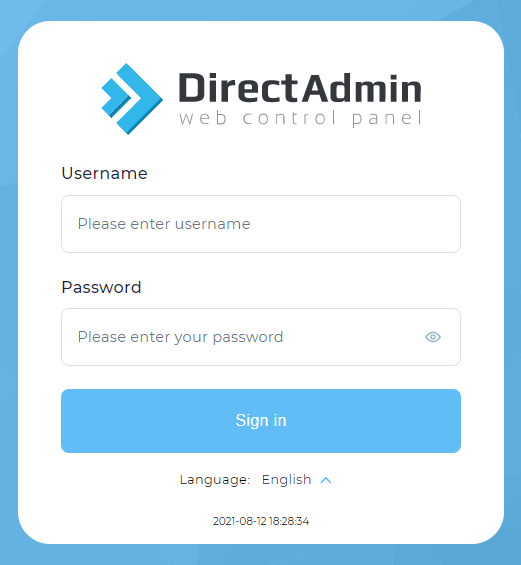
Step1: Login into the Direct Admin Control panel as Admin/ Reseller.
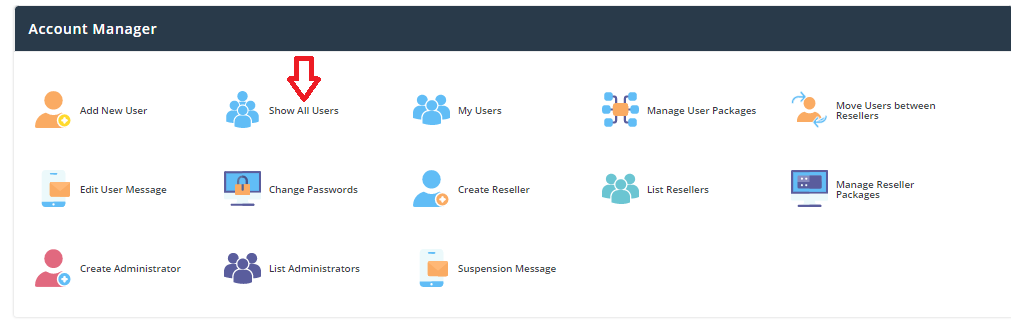
Step 2: Click > Show all users/ List users under the Account Manager section.
Step 3:Now here in the list of users page click that user for which you want to Enable/Disable the SSL option.
Step 4: Here Click the modify option

and enable the check box of SSL to enable to SSL option for that user or disable if not required.

Step 5: After that scroll to the bottom of the page and Click > Save option.
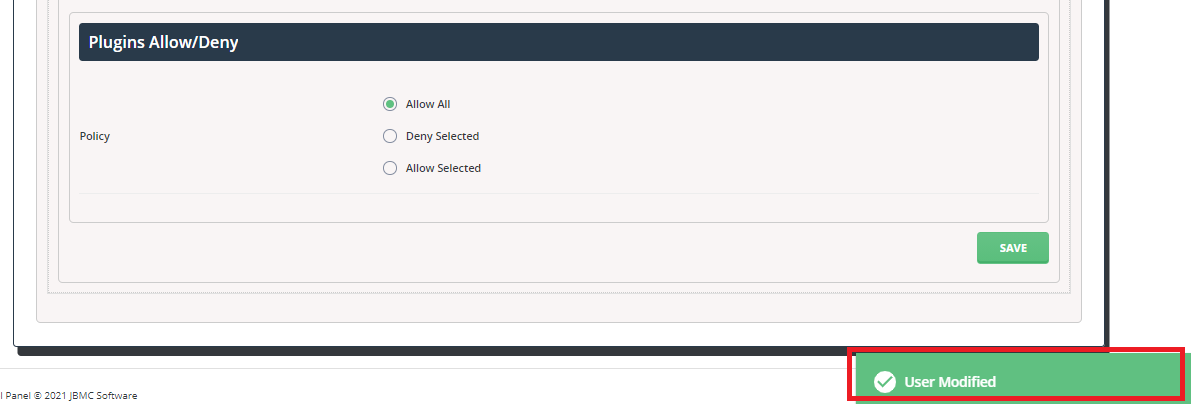
Now you will get a success message as user modified.