
Table of Contents
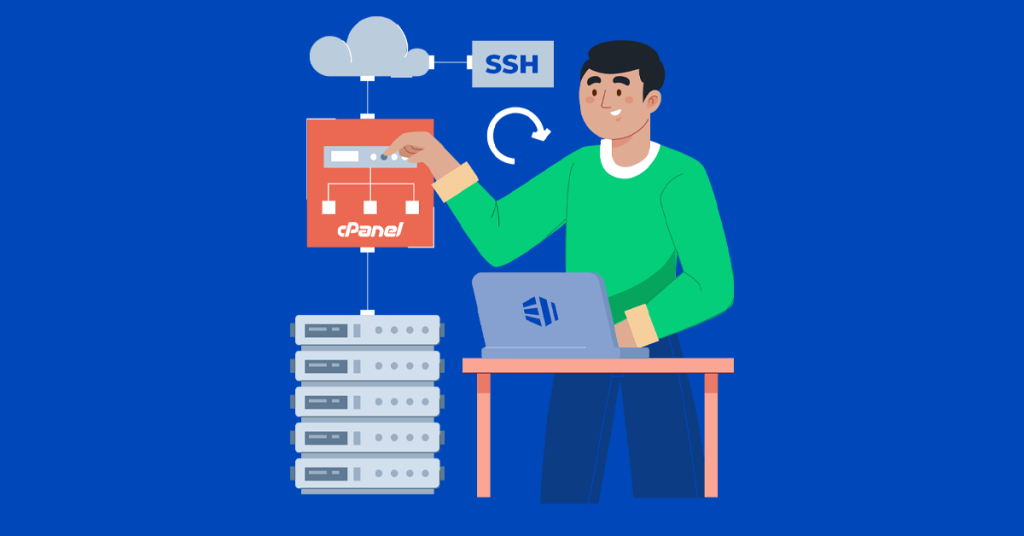
Restart the cPanel service on a server via SSH can be necessary for various administrative tasks or troubleshooting issues. Here’s how you can do it:
SSH stands for Secure Shell. It is a protocol used for establishing secure connections to remote servers or systems. It ensures data confidentiality by encrypting the transmitted information between the host and the client. SSH handles the transmission of user inputs from the client to the host and sends back the corresponding output. The SSH protocol operates on TCP/IP port 22.
It allows you to manage system configurations and execute essential operations. It also enables you to restart or reboot the cPanel service on your server. Whenever you make changes to basic settings or encounter issues with the service, it is necessary to restart the server services.
Steps to Restart cPanel Service via SSH
- Access Your Server via SSH:
- Use an SSH client (like PuTTY for Windows, or Terminal for macOS/Linux) to connect to your server.
- Run the following command to initiate the SSH connection:shCopy code
ssh root@your-server-ip - Replace
your-server-ipwith the actual IP address of your server. Enter the root password when prompted.
- Restart cPanel Services:
- Once logged in, you can restart various cPanel-related services using the
serviceorsystemctlcommand, depending on your server’s configuration. - Restart cPanel & WHM:shCopy code
/scripts/restartsrv_cpsrvdorshCopy codeservice cpanel restartorshCopy codesystemctl restart cpanel - Restart cPanel DNS (named):shCopy code
/scripts/restartsrv_namedorshCopy codeservice named restartorshCopy codesystemctl restart named - Restart cPanel FTP Server (Pure-FTPd or ProFTPD):shCopy code
/scripts/restartsrv_ftpdorshCopy codeservice pure-ftpd restartorshCopy codesystemctl restart pure-ftpdFor ProFTPD:shCopy codeservice proftpd restartorshCopy codesystemctl restart proftpd - Restart cPanel Mail Server (Exim):shCopy code
/scripts/restartsrv_eximorshCopy codeservice exim restartorshCopy codesystemctl restart exim - Restart cPanel Database Server (MySQL/MariaDB):shCopy code
/scripts/restartsrv_mysqlorshCopy codeservice mysql restartorshCopy codesystemctl restart mysqlFor MariaDB:shCopy codeservice mariadb restartorshCopy codesystemctl restart mariadb
- Once logged in, you can restart various cPanel-related services using the
Example: Restarting cPanel Service
Here’s an example of restarting the main cPanel service:
shCopy codessh root@your-server-ip
service cpanel restart
Additional Tips
- Check Service Status:
- Before restarting, you can check the status of a service to ensure it’s running properly:shCopy code
service cpanel statusorshCopy codesystemctl status cpanel
- Before restarting, you can check the status of a service to ensure it’s running properly:shCopy code
- Logs and Troubleshooting:
- If you encounter issues, check the logs located in
/var/log/for specific services (e.g.,/var/log/cpanel/for cPanel logs).
- If you encounter issues, check the logs located in
- Proper Permissions:
- Ensure you are logged in as the root user or a user with sufficient privileges to restart services.
Conclusion
Restart cPanel services via SSH is a straightforward process that involves connecting to your server and executing the appropriate commands. This can help resolve various issues and apply configuration changes effectively. Always ensure to check service statuses and logs if you encounter any issues during the restart process.